Click to Chat offers specialized settings for WooCommerce pages, allowing seamless integration and enhanced user experience.
To use the WooCommerce settings in Click to Chat, install and activate the WooCommerce plugin.
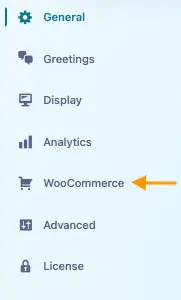
Navigate to Click to Chat and select WooCommerce. A drill-down menu appears with two submenus:
- Overwrite settings: Override the main widget on Single Product pages, or use page-level settings for the Shop, Cart, and Checkout pages.
- Add WhatsApp: Add product-specific WhatsApp widgets to Single Product and Shop pages.
Overwrite Settings for Single Product Pages
Navigate to Click to Chat → WooCommerce → Overwrite settings → Single Product. Leave fields blank to use the defaults.
- Pre-filled Message and Call to Action can be customized for Single Product pages.
- Use WooCommerce variables
{product},{price},{{price}},{regular_price}, and{sku}to personalize the content. - Modify and overwrite the following sections to enhance engagement:
- Greetings Header Content
- Greetings Main Content
- Greetings Bottom Content
- Greetings Call to Action
WooCommerce single product pages
Shop, Cart, Checkout, and Account Pages
WooCommerce Shop, Cart, and Checkout pages are treated as regular post-type pages, giving you easy access and flexibility.
- Navigate to Click to Chat → WooCommerce → Overwrite settings → SHOP, CART, CHECKOUT, ACCOUNT.
- Select the available edit link for the required WooCommerce page.
- Use the Click to Chat Meta Box in the WordPress editor to override the WhatsApp number, pre-filled message, call to action, or widget visibility for that page.
- These settings override the global settings for that specific page.
Add WhatsApp to Single Product Pages
Enhance customer engagement by integrating WhatsApp into your WooCommerce single product pages. You can place the WhatsApp button at various strategic locations, such as:
Navigate to Click to Chat → WooCommerce → Add WhatsApp → Single Product Pages.
- In Add Whatsapp, place the widget before or after the product, product summary, add-to-cart form, or cart button.
- Choose a style under Select Style, then use Customize to edit it.
- For Style 1 or 8, enable Button Layout – Like Add to Cart to match your theme’s cart button layout.
- Open Adjust settings compatible with the theme design for Display Center, Display Block Type, and Margins.
Add WhatsApp on WooCommerce Single Product pages
Add WhatsApp to the Shop Page
Enhance your WooCommerce Shop page with WhatsApp integration for improved customer interaction.
Navigate to Click to Chat → WooCommerce → Add WhatsApp → Shop Page and enable Add WhatsApp. This adds a WhatsApp widget to products on the Shop page.
- Set a product-specific Pre-filled Message and Call to Action.
- The widget also appears in the Related Products section of Single Product pages.
- Select a style and use Customize to edit it.
- For Style 1 or Style 8, use Button Layout – Like Add to Cart when needed.
- Open the Adjust settings compatible with the theme design accordion to configure Display Center and Margins.
Additional Settings
Under Click to Chat → WooCommerce → Add WhatsApp → Additional Settings, enable Apply Business Hours to make WooCommerce WhatsApp widgets follow the schedule set in Display → Business Hours.
Control Widget Visibility on WooCommerce Pages
Navigate to Click to Chat → Display → Pages → WooCommerce Pages. Set each page type to Global, Show, or Hide.
- Single Product Pages
- Shop Page
- Cart Page
- Checkout Page
- Thank You / Order Received Page
- Account Page
With Click to Chat’s WooCommerce integration, we create a seamless, personalized communication channel to boost conversions