A WhatsApp Icon with padding.
Style 3 Extend builds on the simplicity of Style 3 while offering additional customization options. This version allows for more control over the button’s appearance
To Apply Style 3 Extended
- Go to Click to Chat → General → Widget Style & Position.
- Select Desktop and choose Style 3 Extend from the style grid.
- Click Save.
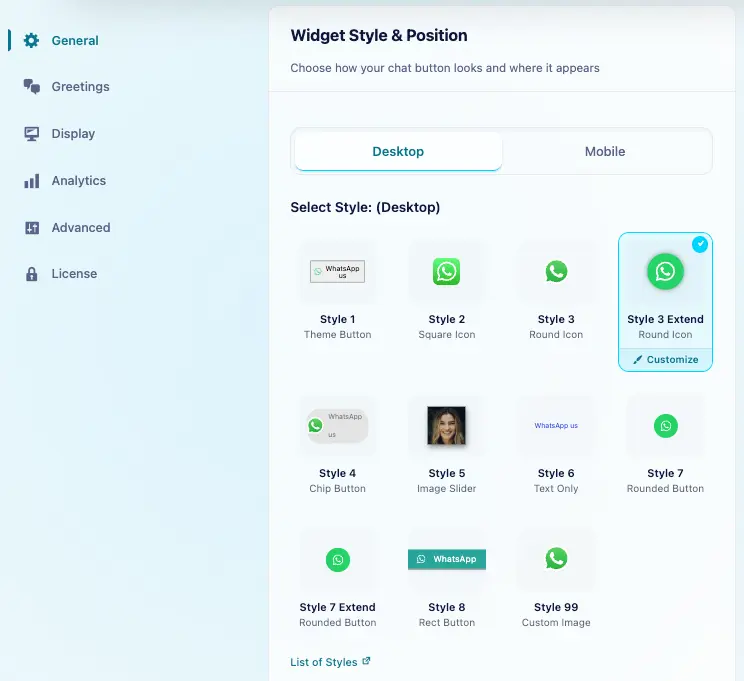
We can use the same style for desktop and mobile. To choose a different style for mobile, turn off Mobile and Desktop same settings.
Customization
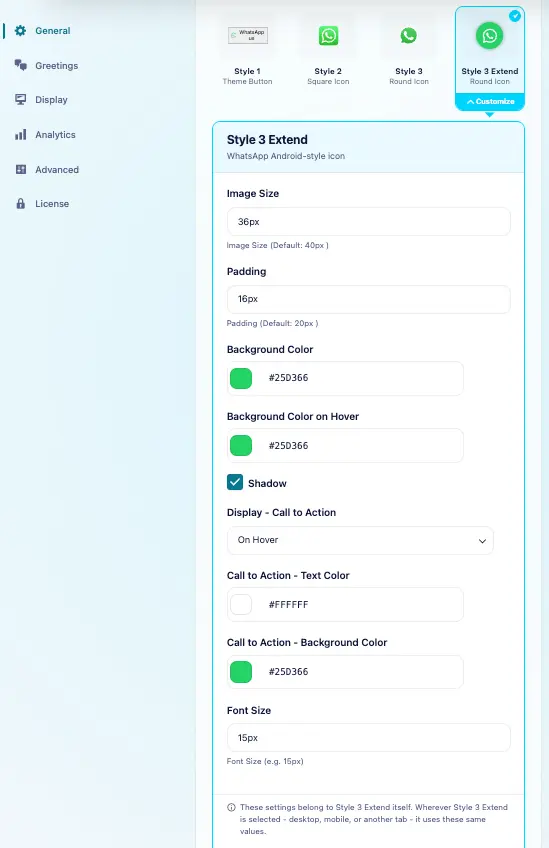
Select Style 3 Extend in the style grid, then click the Customize brush icon that appears on the selected style. Edit its appearance and click Save. Saved changes apply wherever Style 3 Extend is used.
Key Features
- Customizable Image Size: Resize the button’s image to match the layout of your website.
- Padding Adjustments: Fine-tune the padding around the icon and widget to ensure perfect spacing.
- Background Color Customization: Set a solid background color for the button and modify it on hover.
- Hover Effects: Make the button more interactive by changing the background color when the user hovers over it.
- Add Shadow Effects: Enhance the button’s visual appeal by adding a subtle shadow effect.
- Call to Action Options: Control the visibility of the CTA—show it on hover, permanently, or hide it entirely.
Style 3 Extended offers more design control with features like padding, shadow effects, and hover color changes, perfect for a dynamic yet simple WhatsApp button.