The Materialized Chat Widget
Style 8 offers comprehensive customization for a WhatsApp button, allowing users to modify the text, icon, and button appearance to perfectly match their website’s style.
To Apply Style 8
- Go to Click to Chat → General → Widget Style & Position.
- Select Desktop and choose Style 8 from the style grid.
- Click Save.
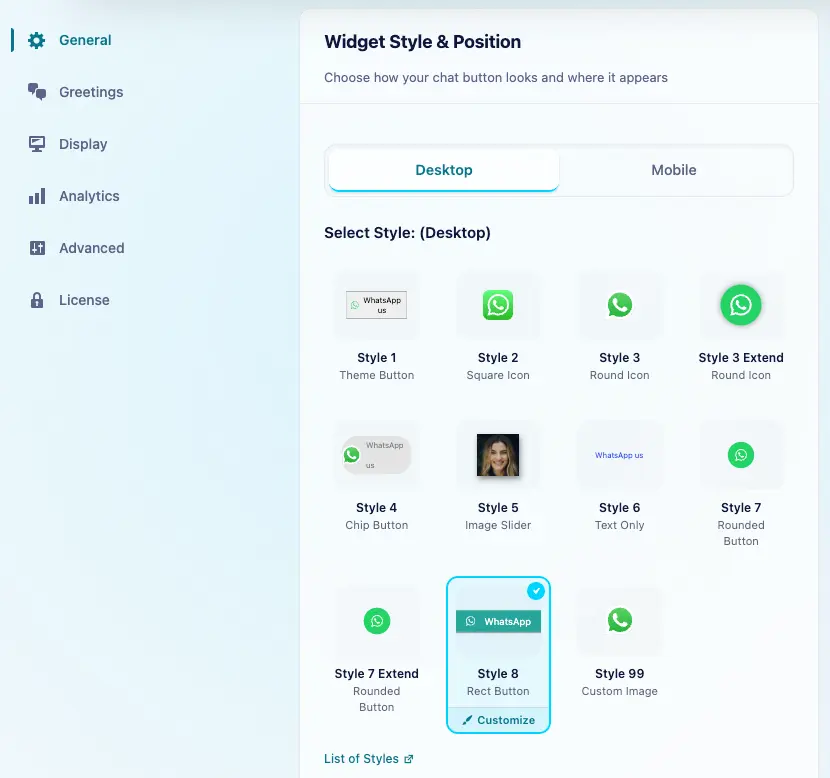
We can use the same style for desktop and mobile. To choose a different style for mobile, turn off Mobile and Desktop same settings.
Customization
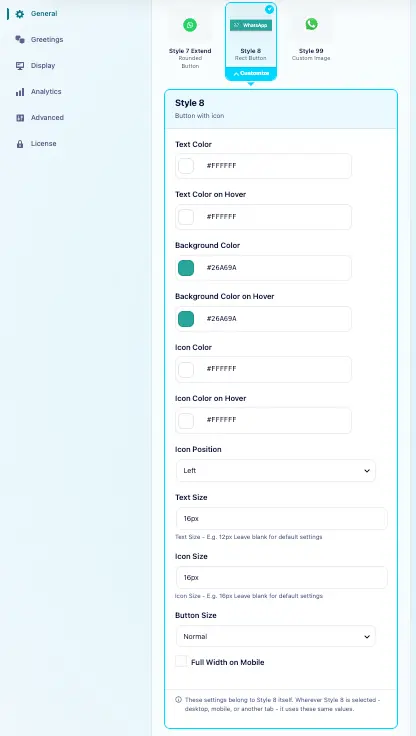
Select Style 8 in the style grid, then click the Customize brush icon that appears on the selected style. Edit its appearance and click Save. Saved changes apply wherever Style 8 is used.
Key Features
- Text Color: Choose the color for the text on the button.
- Text Color on Hover: Modify the text color when users hover over the button.
- Background Color: Set the background color for the button.
- Background Color on Hover: Change the background color when the button is hovered over.
- Icon Color: Select the color for the WhatsApp icon.
- Icon Color on Hover: Adjust the icon color when hovered over.
- Icon Position: Set the position of the icon relative to the text (left or right).
- Text Size: Customize the font size of the button text.
- Icon Size: Adjust the size of the WhatsApp icon.
- Button Size: Set the overall size of the button.
- Full Width on Mobile: Enable the button to stretch across the full width of the screen on mobile devices.
Full Width Button on Mobile:
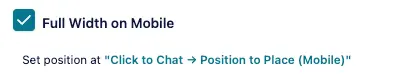
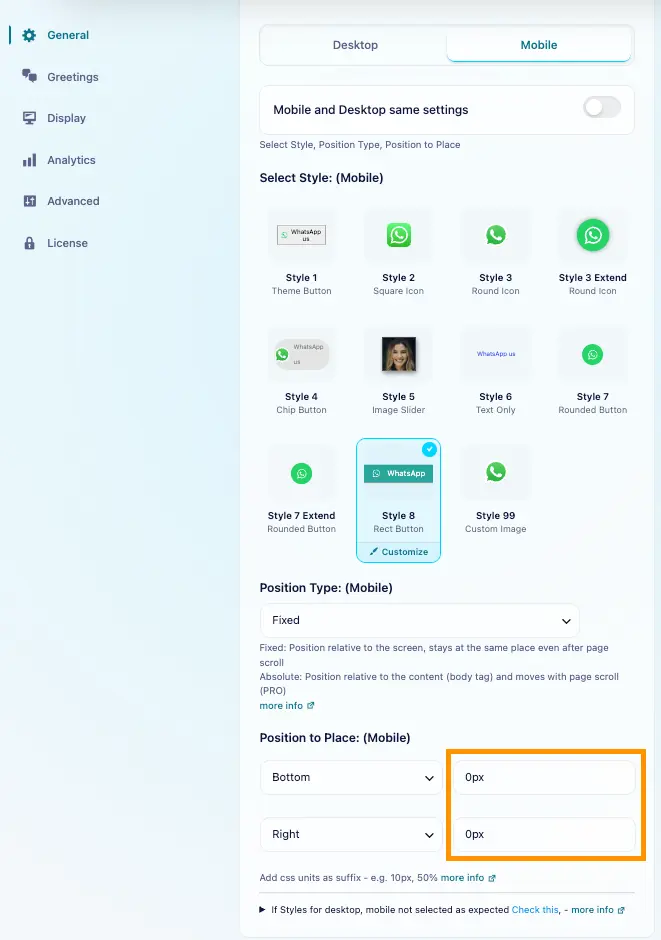
After checking that box, we can adjust the position; However, since Full Width on Mobile is enabled, we can’t add margins to the right or left.
Instead, we can adjust the padding on the right and bottom.
Style 8 is perfect for those seeking a fully customizable WhatsApp button, offering flexibility in text, icon, and button settings, and ensuring a responsive design across all devices.