An Advanced widget with Image and content-box
Style 5 offers advanced customization with full control over text, image, and content box properties. Perfect for users who want a highly tailored WhatsApp button that stands out.

WhatsApp us
We will respond as soon as possible
To Apply Style 5
- Go to Click to Chat → General → Widget Style & Position.
- Select Desktop and choose Style 5 from the style grid.
- Click Save.
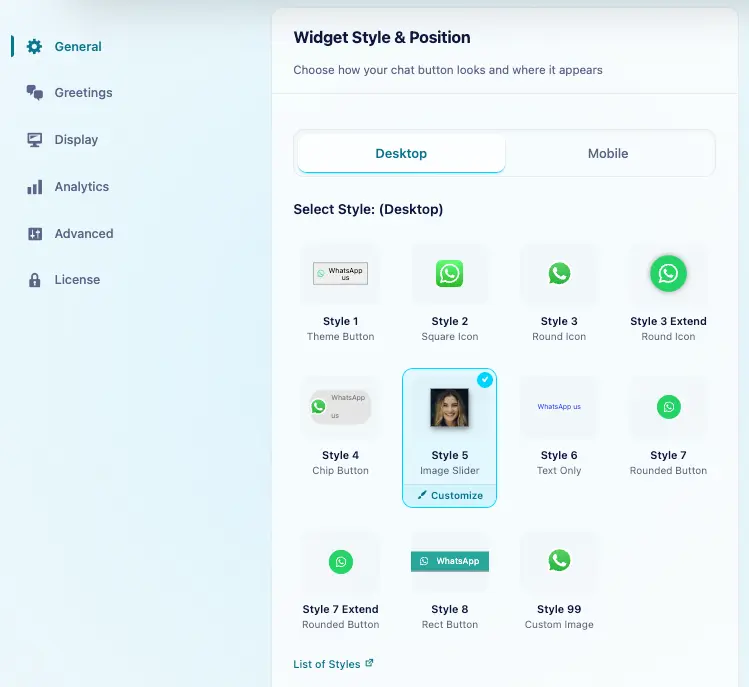
We can use the same style for desktop and mobile. To choose a different style for mobile, turn off Mobile and Desktop same settings.
Customization
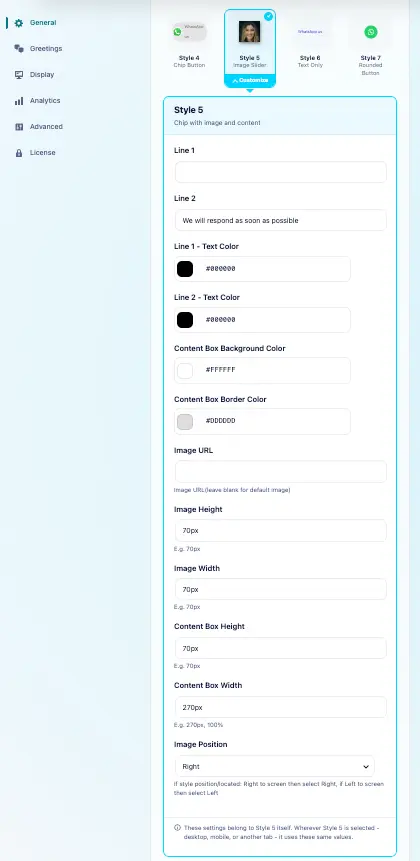
Select Style 5 in the style grid, then click the Customize brush icon that appears on the selected style. Edit its appearance and click Save. Saved changes apply wherever Style 5 is used
Key Features
- Line 1 and Line 2 Customization: Change the text and colors for both lines.
- Content Box Background & Border Color: Set colors for the content box background and border.
- Custom Image URL: Upload your own image for the button.
- Adjustable Image Size: Modify the height and width of the image.
- Content Box Dimensions: Set the height and width of the content box to fit your design.
- Image Position: Control the image’s position relative to the text.
Style 5 provides in-depth customization, giving you full control over the button’s text, image, and content box for a unique, professional design.