The Greetings Form Date Field adds a date and time selection option to the Click to Chat Greeting Form. It provides users to book an available time slot (for example, appointments or consultations) before starting a chat.
This field also includes an integrated calendar and time picker, helping us capture scheduling details upfront and start conversations with clear context.
Adding the Date Field
To add the Date Field to the greeting form:
- Navigate to Click to Chat → Greetings in the plugin settings.
- Select Greeting Form.
- Add the Date field.
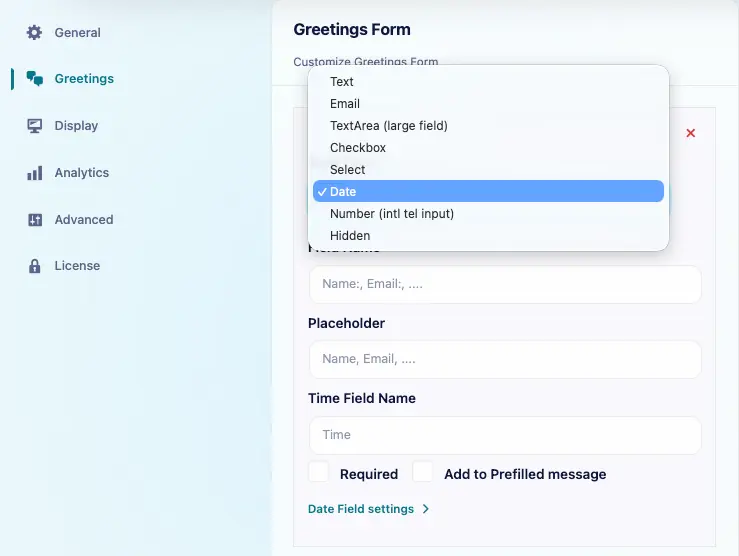
- Set the field Name(for example – Set the appointment).
- Mark the field as Required & Add to Prefilled message if required.
Greetings Form – Date Field Settings
All configuration options are available under Date Field Settings in the plugin dashboard.
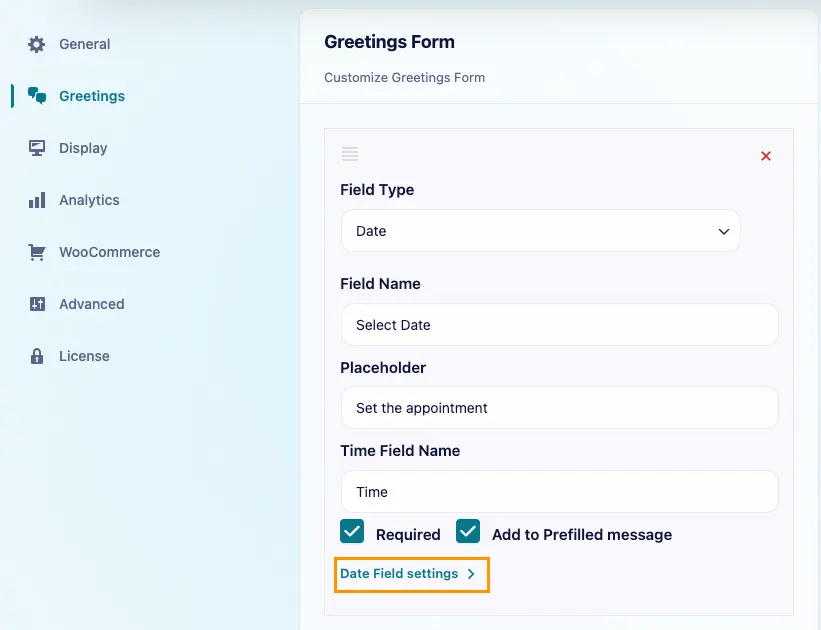
We have two types of Date field settings:
- Date Mode
- Schedule(Date+Time)
Date Mode (view demo)
Allows users to select only a date (no time), making it ideal for cases where the exact time is not required and only the preferred or available date needs to be captured.
In the date mode select Date Only

Min and Max Dates
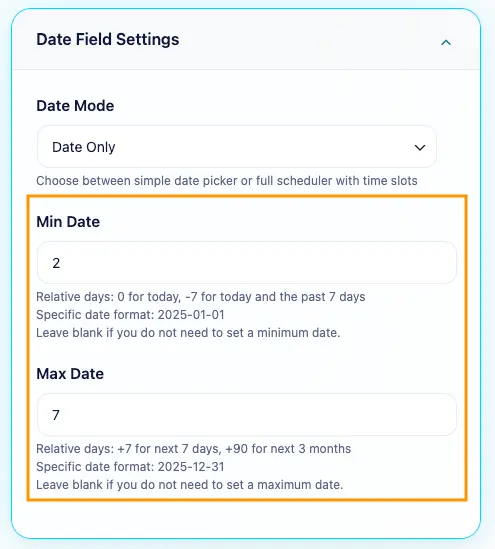
Min Date sets the earliest selectable date, and Max Date sets the latest selectable date.
We can use relative days (for example 2 = 2 days from today, 7 = next 7 days) or a specific date (YYYY-MM-DD).
Example
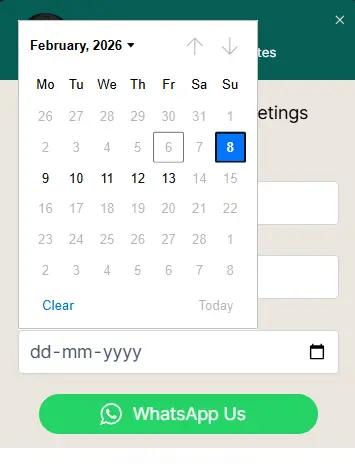
If today is Feb 6 Min Date = 2 and Max Date = 7, users can select dates only from Feb 8 to Feb 13.
On the frontend, clicking the Date field opens the browser’s default date picker for date selection.
Scheduler Mode (view demo)
Scheduler (Date & Time) allows users to select both a date and a time slot, helping schedule appointments or consultations before starting a chat.
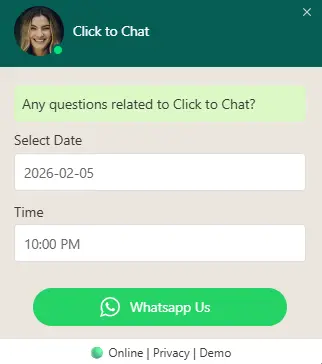
When a user clicks the Date field, a modal opens where they can select the date and time.

Schedule Timings
Schedule Timings define the operational hours for each day.
- We can set start and end times per day or 24/7 online
- We can exclude specific days
- Time slots are generated only within the defined hours
Example
If business hours are 9:00 to 17:00 , Monday to Friday, and weekends are closed:
- Set Monday–Friday to 9:00 – 17:00
- Exclude Saturday and Sunday
On a selected weekday, available slots appear only between 9:00 and 17:00 .

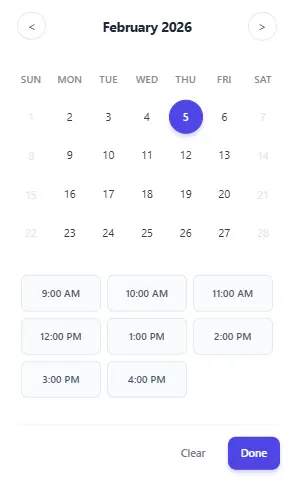
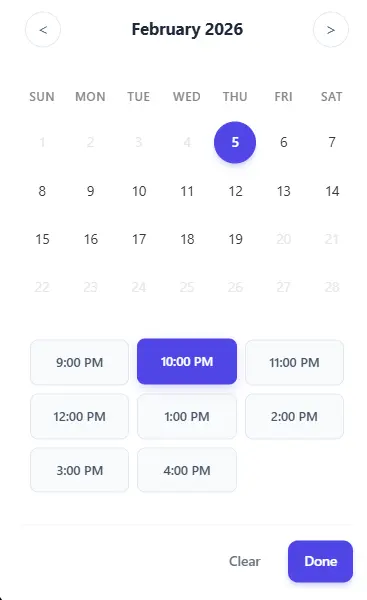
This schedule creates time slots from Monday to Friday, 9:00 AM to 5:00 PM. When a user clicks the Date field, a modal opens showing the dates and time slots based on the admin settings
Schedule up To
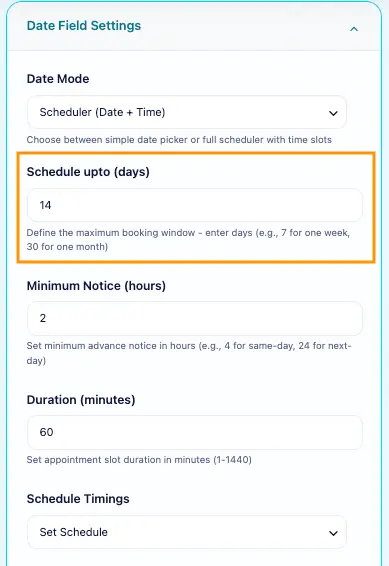
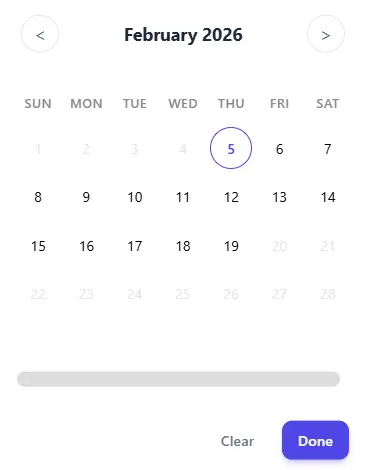
Schedule up To defines the maximum number of days in advance a user can book.
- Dates beyond the set limit are disabled in the calendar
Example
If Schedule up To is set to 14 days and today is January 1, users can book appointments up to January 14. Dates after that are grayed out.
Minimum Notice
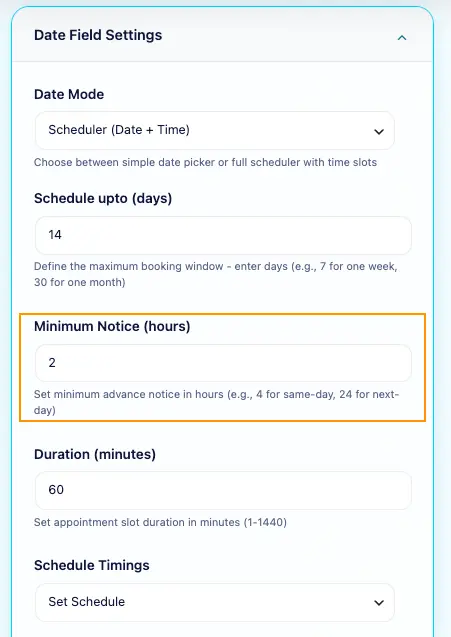
Minimum Notice ensures sufficient preparation time before an appointment.
- We can set the minimum number of hours required before a booking
- Slots within this notice period are disabled automatically
Example
If the minimum notice is 2 hours and the current time is 10:00 AM:
- All slots before 12:00 PM today are disabled
- Slots on later days remain available based on the defined schedule
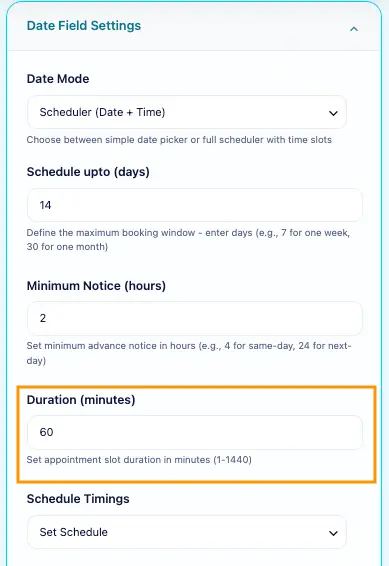
Duration
Duration defines the time gap between each slot.
- Slots are generated automatically based on the selected duration
- The last slot is generated only if it fits completely within the available time range
Example
Availability: 9:00 AM – 5:00 PM
Duration: 60 minutes
Generated slots: 9:00 AM, 10:00 AM, 11:00 AM, 12:00 PM, 1:00 PM, 2:00 PM, 3:00 PM, 4:00 PM
The last slot starts at 4:00 PM, so the appointment finishes by 5:00 PM.
Time Zone in Pre-Filled Message
The Date Field can automatically include the user’s time zone in the WhatsApp pre-filled message.
- The time zone is detected from the user’s browser or device
- The selected date, time, and time zone are added to the message
- Check Add to pre-filled message right after the selected date field
Example:
If a user selects February 5 2026, 1:30 PM and their time zone is IST, the pre-filled message will be:
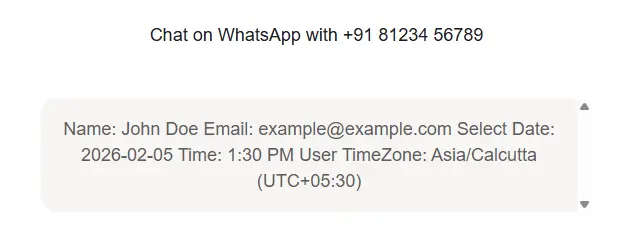
This helps ensure both sides are aligned on the scheduled time before the conversation begins.
Use Cases
Date Mode (Date Only) is useful when only a preferred or required date needs to be captured, such as delivery dates, follow-ups, or availability confirmation, without needing an exact time.
Scheduler Mode (Date & Time) is ideal for booking specific time slots for appointments, consultations, demos, or meetings within defined availability.