Utilize the Business Hours feature to display the WhatsApp widget during work hours and switch to offline mode outside those hours. This keeps availability clear and reduces unnecessary interactions during non-working times.
🔗 Included in the PRO plan — View Pricing
Navigate to Click to Chat → Display and scroll down to the Business Hours card.
Here, we can:
- Set Business Hours(for each day)
- Hide When Offline
- Change WhatsApp Number & Call to Action When Offline
Set Business Hours
Check your website’s timezone under WordPress → Settings → General → Timezone. Your schedule uses this timezone.
Business Hours (Online/Offline) has two options:
- Always Open (Online): Keep the widget online 24/7.
- Selected Days, Hours: Keep the widget online during your configured days and time ranges.
Choose Selected Days, Hours to configure your schedule:
- Check the days your team is available. Leave closed days unchecked.
- Beside each checked day, click Add Time and enter a start time and an end time. Repeat for each working day.
- For multiple shifts on the same day, click Add Time again to add another range.
- On checked days, leave the time fields blank only if you want 24-hour availability.
- Choose whether to hide or keep the widget visible outside these hours using the offline options below, then click Save.
Weekday Schedule Example
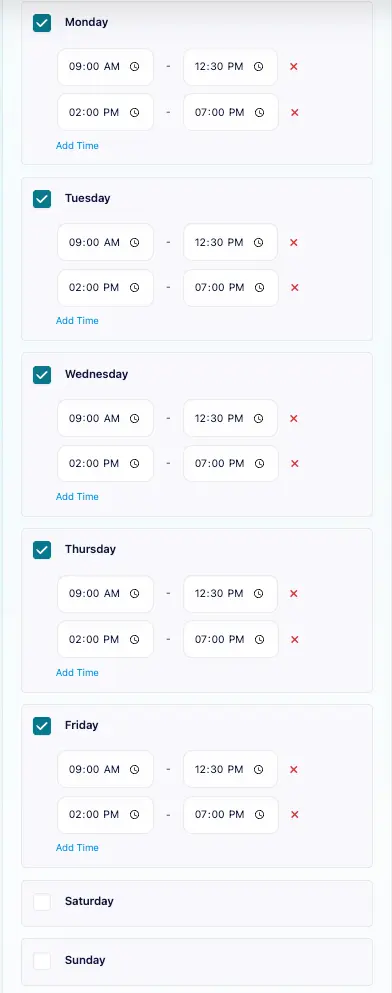
- Check Monday–Friday. For each day, click Add Time and set the first range to 9:00 AM–12:30 PM.
- Click Add Time again and set the second range to 2:00 PM–7:00 PM.
- Leave Saturday and Sunday unchecked to stay offline all day.
- Click Save to apply the schedule.
The widget is online during both time ranges, Monday–Friday. Between the ranges, outside those hours, and on weekends, it follows your offline settings.
Hide When Offline
Find the offline options in the same Business Hours card after choosing Selected Days, Hours.
Enable Hide WhatsApp When Offline and click Save to hide the WhatsApp widget outside your business hours.
Ideal when no support is available outside business hours.

Hide when Offline Documentation
Change WhatsApp number when offline:
Instead of hiding the widget, direct users to a different WhatsApp number outside business hours.
To enable:
- Leave Hide WhatsApp When Offline unchecked.
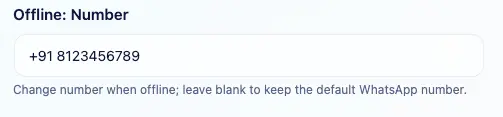
- Enter your preferred number, including the country code, in Offline: Number and click Save.
Example:
- Online: Your usual WhatsApp number from Click to Chat → General
- Offline:
+91 81234 56789
If no Offline: Number is entered, the widget uses your usual WhatsApp number during both online and offline hours.
Change Call to Action when offline:
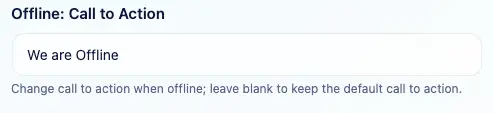
Display a custom Call to Action (e.g., We are offline. Leave us a message.) when users visit outside business hours.
To enable:
- Leave Hide WhatsApp When Offline unchecked.
- Enter your preferred text in Offline: Call to Action and click Save.
Leave Offline: Call to Action blank to keep your usual Call to Action. Users can still click the visible widget and send a WhatsApp message outside business hours.
Multiple Time Slots Per Day (Shift-Based Business Hours)
If our support team works in different shifts throughout the day, we can set up multiple time slots per day using the Business Hours feature. This ensures the WhatsApp widget accurately reflects our availability – switching between online and offline mode based on each shift.
How It Works
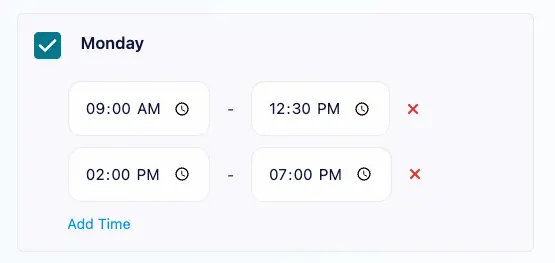
Each range is a period when your team is available. Add the start and end times for each shift under the same day, then click Save:
- The widget is online during the configured ranges.
- Between ranges and after the last range, it follows your offline settings: hide the widget or keep it visible with your chosen number and Call to Action.
Real-World Example (Best Practical Scenario)
Imagine we run a customer support team with two shifts and a mid-day break.
- Morning Shift: 09:00 AM – 12:30 PM Our team is available to respond.
- Break: 12:31 PM – 01:59 PM The widget goes offline (or shows “We’ll be back at 2 PM”).
- Evening Shift: 02:00 PM – 07:00 PM The widget comes back online for the second shift.
- After 07:00 PM, the widget switches to offline mode.
| Time / User Visit | Shift Type | Widget Status | User Experience / Explanation |
|---|---|---|---|
| 09:00 AM – 12:30 PM | Morning Shift | Online | Team is active; widget is visible and allows chat. |
| 11:15 AM (User Visit) | Morning Shift | Online | User can start a WhatsApp chat. |
| 12:31 PM – 01:59 PM | Break Time | Offline | Widget hides or shows “We’ll be back at 2 PM.” |
| 01:00 PM (User Visit) | Break Time | Offline / Hidden | User sees offline message or no widget. |
| 02:00 PM – 07:00 PM | Evening Shift | Online | Support available again; widget active. |
| 06:30 PM (User Visit) | Evening Shift | Online | User can start a chat during evening shift. |
| After 07:00 PM | Closed Hours | Offline | Widget stays offline for the rest of the day. |
Night Shift Example (Shift Crossing Midnight)
For night shifts from 10:00 PM to 7:00 AM the next day, split each shift across midnight:
- Monday: 10:00 PM–11:59 PM (22:00–23:59).
- Tuesday: 12:00 AM–7:00 AM (00:00–07:00) to finish Monday’s shift, and 10:00 PM–11:59 PM (22:00–23:59) to start Tuesday’s shift.
- Wednesday: 12:00 AM–7:00 AM (00:00–07:00) to finish Tuesday’s shift, and 10:00 PM–11:59 PM (22:00–23:59) to start Wednesday’s shift.
To finish Wednesday’s shift, also check Thursday and add 12:00 AM–7:00 AM (00:00–07:00).
Check the required days, add each time range, and click Save.
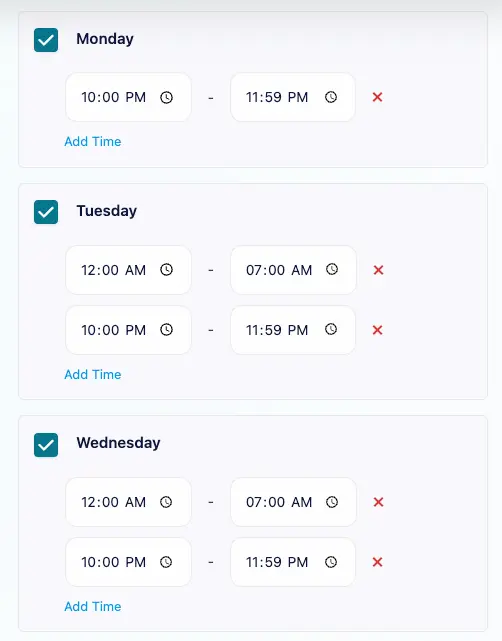
The widget stays online across midnight for each shift and follows your offline settings outside the configured time ranges
⚠ Important:
Whenever a shift crosses midnight, divide it into two slots—one ending at 11:59 PM and the other starting at 12:00 AM the next day. This covers both days without an offline gap at midnight.
Time Format and Timezone
Time Format: The time selection fields may show a 12-hour format (AM/PM) or a 24-hour format, depending on your browser and device’s regional settings.
Timezone: The schedule follows the timezone set in WordPress → Settings → General → Timezone. Check the Current Site Time displayed in the Business Hours card before setting your schedule.
Time Ranges for Enabled Days
- No time range added: The widget is online all day, from 00:00 to 23:59.
- Only a start time entered: The widget is online from that time until the end of the day (23:59).
- Only an end time entered: The widget is online from 00:00 until that time.
When to Use This
- We operate support in split shifts.
- Different departments are available at different times.
- We have regional teams working across time zones.
- We want to control when chats come in to manage workload.