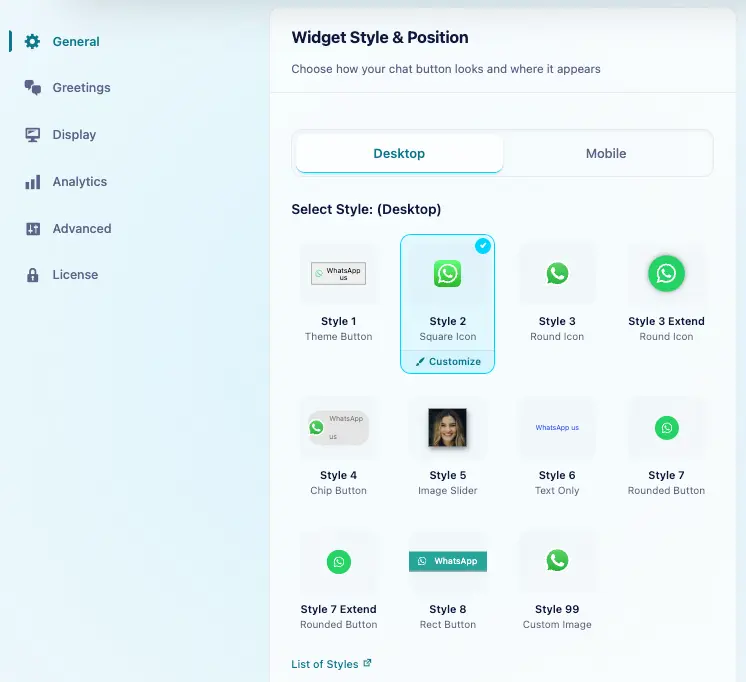
We can select different styles for Mobile, and Desktop devices.
Navigate to Click to Chat → General → Widget Style & Position.
Style for Desktop
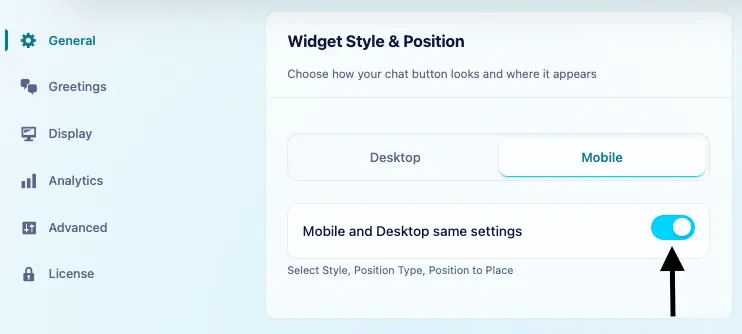
Use the Same Settings on Desktop and Mobile
Under Widget Style & Position, select Mobile and enable Mobile and Desktop same settings to use the desktop style and position on both devices.
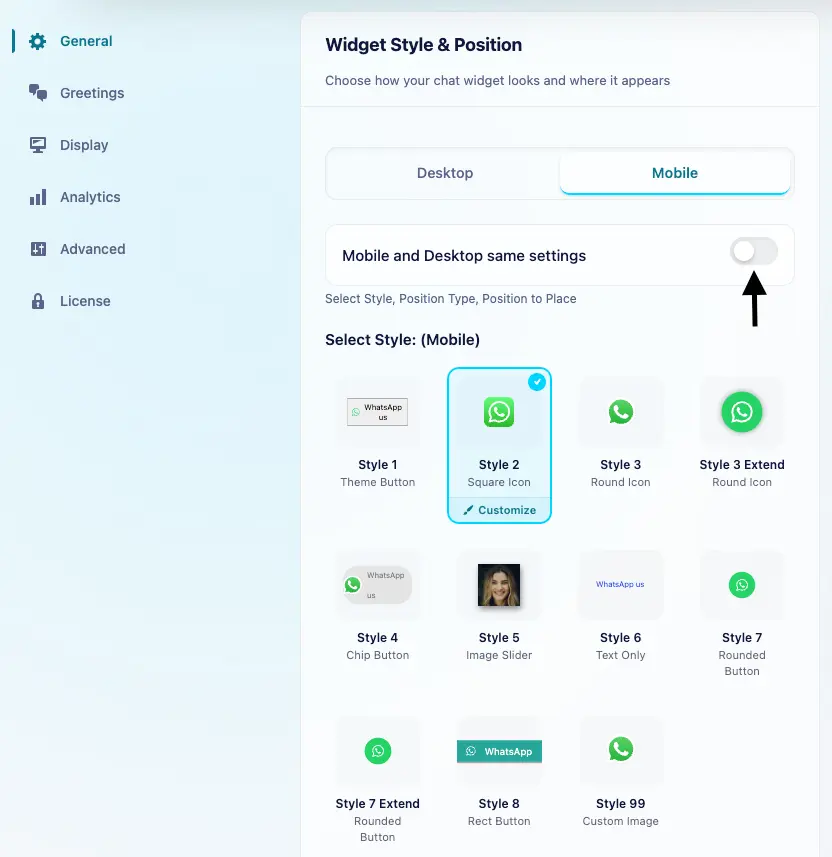
To use a different style or position on mobile, select Mobile, turn off Mobile and Desktop same settings, and configure the mobile options.
Style for Mobile
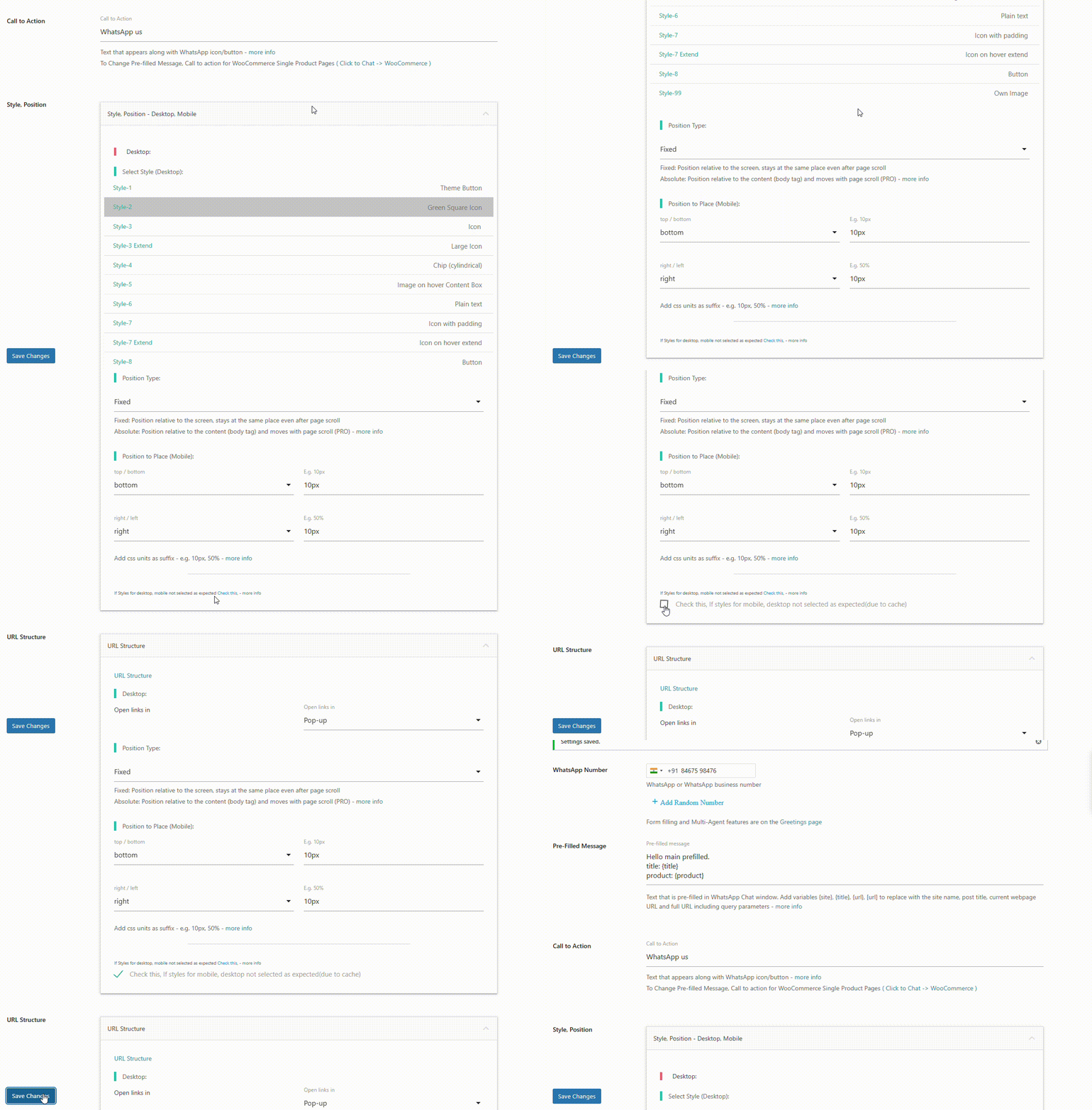
Different styles: not displaying as expected?
If Styles for desktop, and mobile are not selected as expected, it might be due to a cache issue. Some of the Caches(cache plugin, server-side cache) create only one static file per page, and the same page loading for desktop, and mobile.
Try the following methods:
Method 1: If there is an option to enable to detect devices (separate for mobile) on cache plugins installed on your website, enable it.
Method 2: Navigate to Click to Chat → General → Widget Style & Position and select Mobile. At the bottom of the Mobile settings, click Check this to expand the cache compatibility option. Select the checkbox, save the changes, and clear all caches.
Note: Enable this checkbox only when different desktop and mobile styles are not being applied as expected because of caching.
Greetings
The Greetings widget can be added at the top of the “Click to Chat” icon, offering customizable options.
- Greeting 1: Provides a customizable design with a message and a WhatsApp button.
- Greeting 2: Elegantly displays content alongside a WhatsApp button.
- Greeting 3 (PRO): Collects necessary visitor data through a form before starting the chat.
- Greeting 4 (PRO): Enables the setup of multiple agents with unique time ranges, ensuring effective customer service management. Each greeting has documentation for easy setup and configuration