Enhance user engagement by allowing visitors to join our WhatsApp Group directly from our website. The Group Chat feature in the Click to Chat plugin makes it easy to promote our group and connect with users in real time.
Enable the Group Feature
Navigate to Click to Chat → Advanced → Group, Share features.
Check Enable Group Features and click Save.
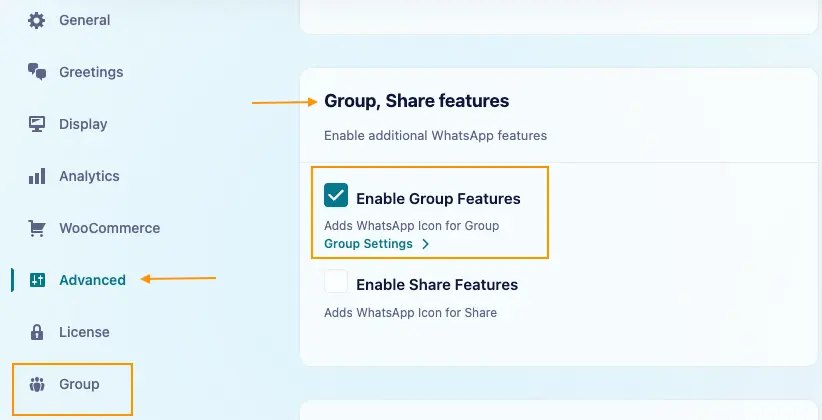
Once enabled,, Group appears in the plugin’s sidebar. Click it to reveal the Group Settings submenu.
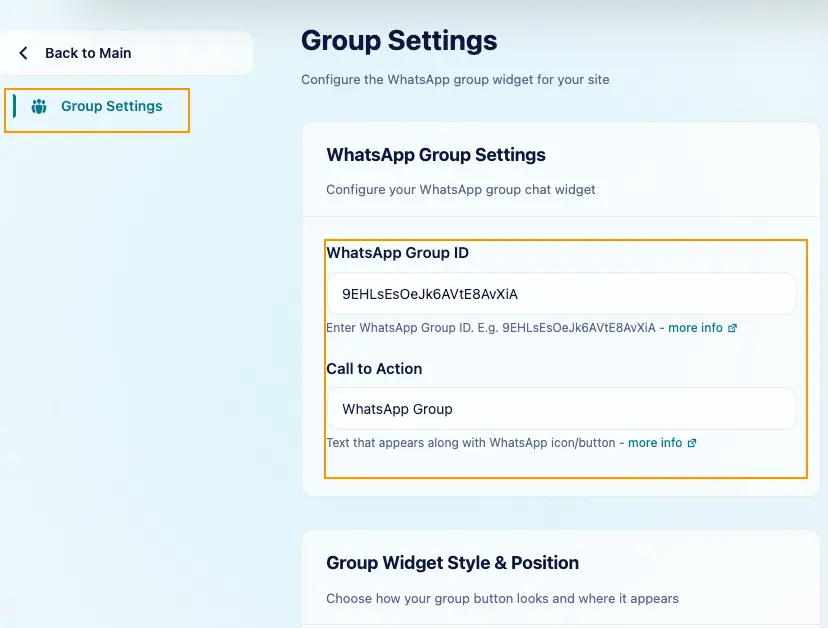
Navigate to Click to Chat → Group → Group Settings to configure the widget.
Configure the Group Widget
Under Group Settings, configure the following:
- WhatsApp Group ID: Enter the ID from your group invitation link—the part after
https://chat.whatsapp.com/. How to find your Group ID - Call to Action: Add the text displayed with the widget, such as WhatsApp Group or Join our group.
- Group Widget Style & Position: Choose a style and position for Desktop and Mobile, or enable Mobile and Desktop same settings to use the desktop settings on both.
- Devices: Set Desktop Display and Mobile Display to Show or Hide. Choose Show for both to display the group widget on both devices.
- Pages: Choose where the group widget appears using Global Display, page-type overrides, or Page/Category Lists.
Click Save after making changes. Open a page where the group widget is enabled and click it to check that it opens the correct WhatsApp group invitation.
Shortcode
Shortcodes for Group Chat: WhatsApp Group